
User guide
Trim and listen
From Médiathèque, choose Écouter on the media you want. The player shows its title and duration, a play button, and a slider for seeking. Editing tools are available when you need them.
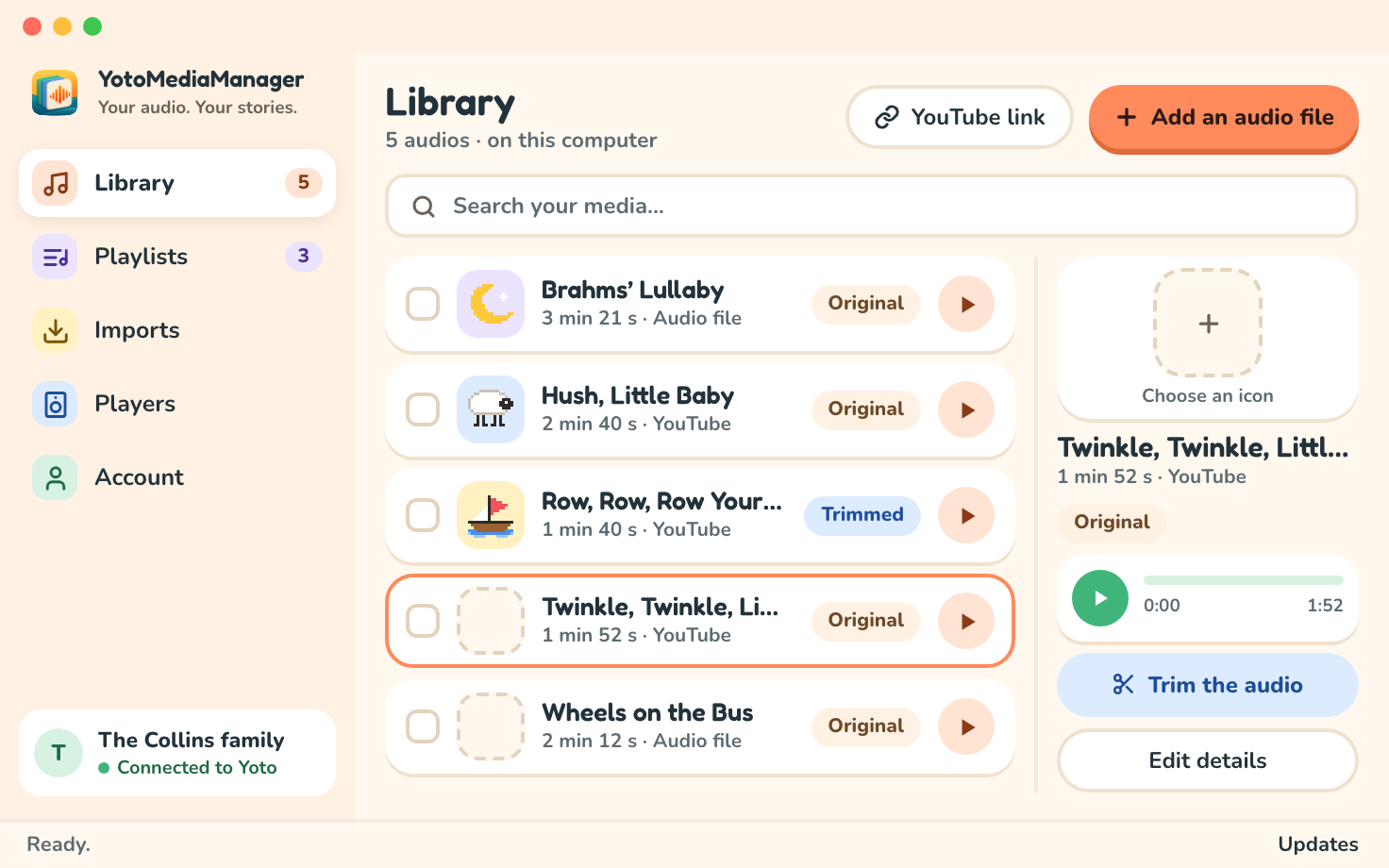
Remove an introduction or credits
- Choose
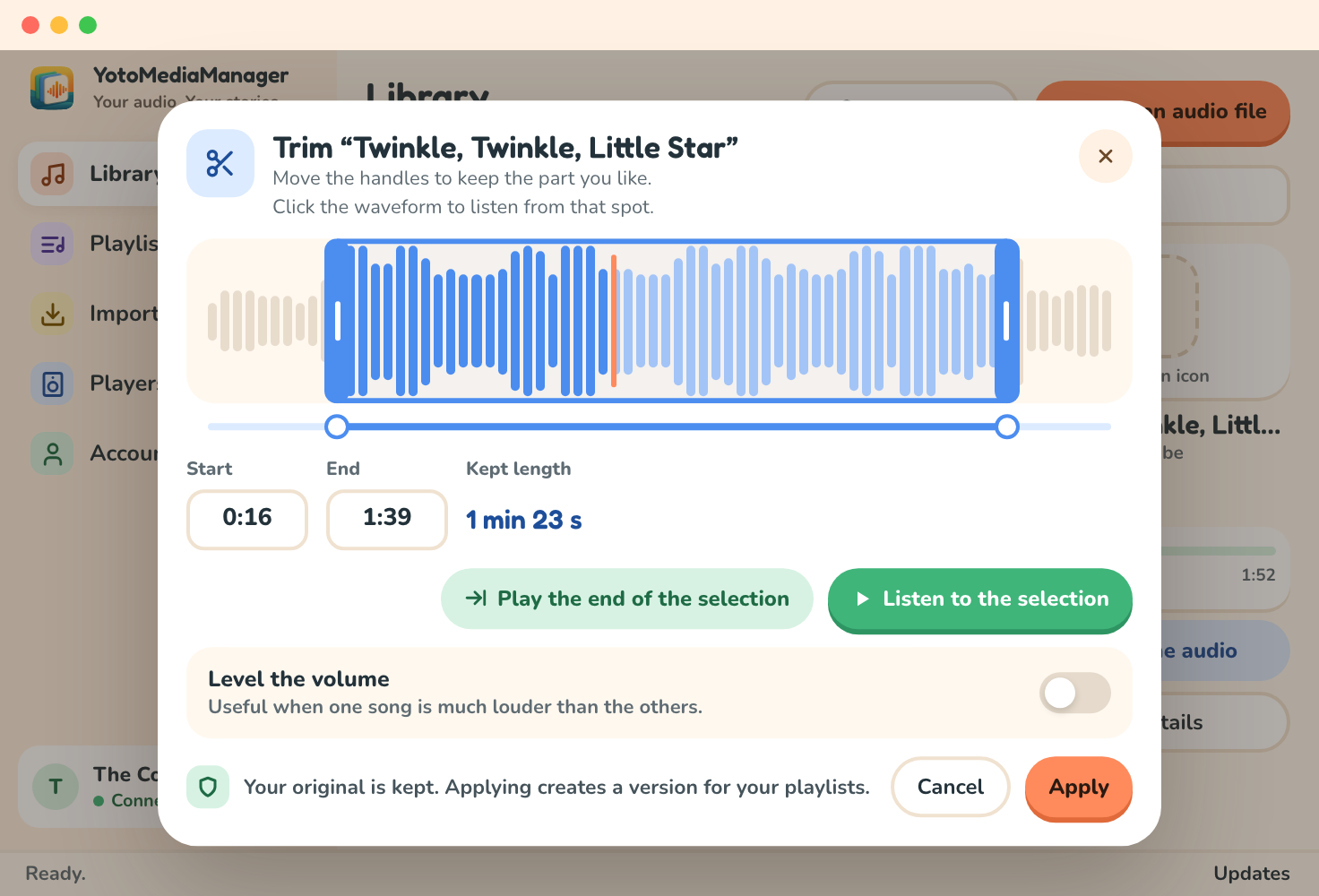
Découper l’audioto open the trimming dialog and its waveform. - Drag the start and end handles on the waveform, or the slider under it, to keep the part you want.
- For greater precision, enter the two positions in seconds. For example, start
12and end180keep the audio from 12 seconds to 3 minutes. - Click the waveform to move the playhead, then choose
Écouter la sélectionto listen from there.Écouter la fin de la sélectionplays its last seconds, to check where it ends. - Adjust the boundaries, then choose
Appliquer. The app prepares an MP3 version; when it is ready, the dialog closes and the player showsVersion découpée.
Playback in the trimming dialog plays only the selected range. Arrêter l’écoute stops the preview. Annuler or Escape closes the dialog without creating a version; your original stays intact.
The end must follow the start and stay within the original duration. The app reports an error if the boundaries are invalid.
Make volume more consistent
In the trimming dialog, enable Égaliser le volume to prepare a version with more consistent volume. Leave this option off to preserve the source level.
Conversion and volume normalization happen on your computer. The dialog shows Préparation de votre découpe… and closes when the version is available. You can also find this task in Imports.
Understand audio versions
The original stays intact. Each preparation creates a reusable version. You can keep the full audio, a version without an introduction, and several excerpts from the same media.
When adding audio to a playlist, select the version you want. Creating a new version does not automatically replace tracks already added to a playlist.
Rename and export
In the player's ⋯ menu, open the information editor. Change the title, author, and tags, then choose Enregistrer. Separate tags with commas.
The same menu lets you export the original or delete media that no playlist uses. Export writes a copy of your original audio file to the location you choose.