User guide
Import media
From an audio file
Choose + Ajouter un fichier or Ajouter un fichier audio, then select one or more files. You can also drag audio files into the app.
The app copies and analyzes each file. Your source file stays in its original location, and the library keeps its own copy. You can rename imported media later.
From YouTube
- Open
Importsand paste the video's address. - Choose
Importer. A single video is downloaded directly. - Follow the download and analysis in the import history.
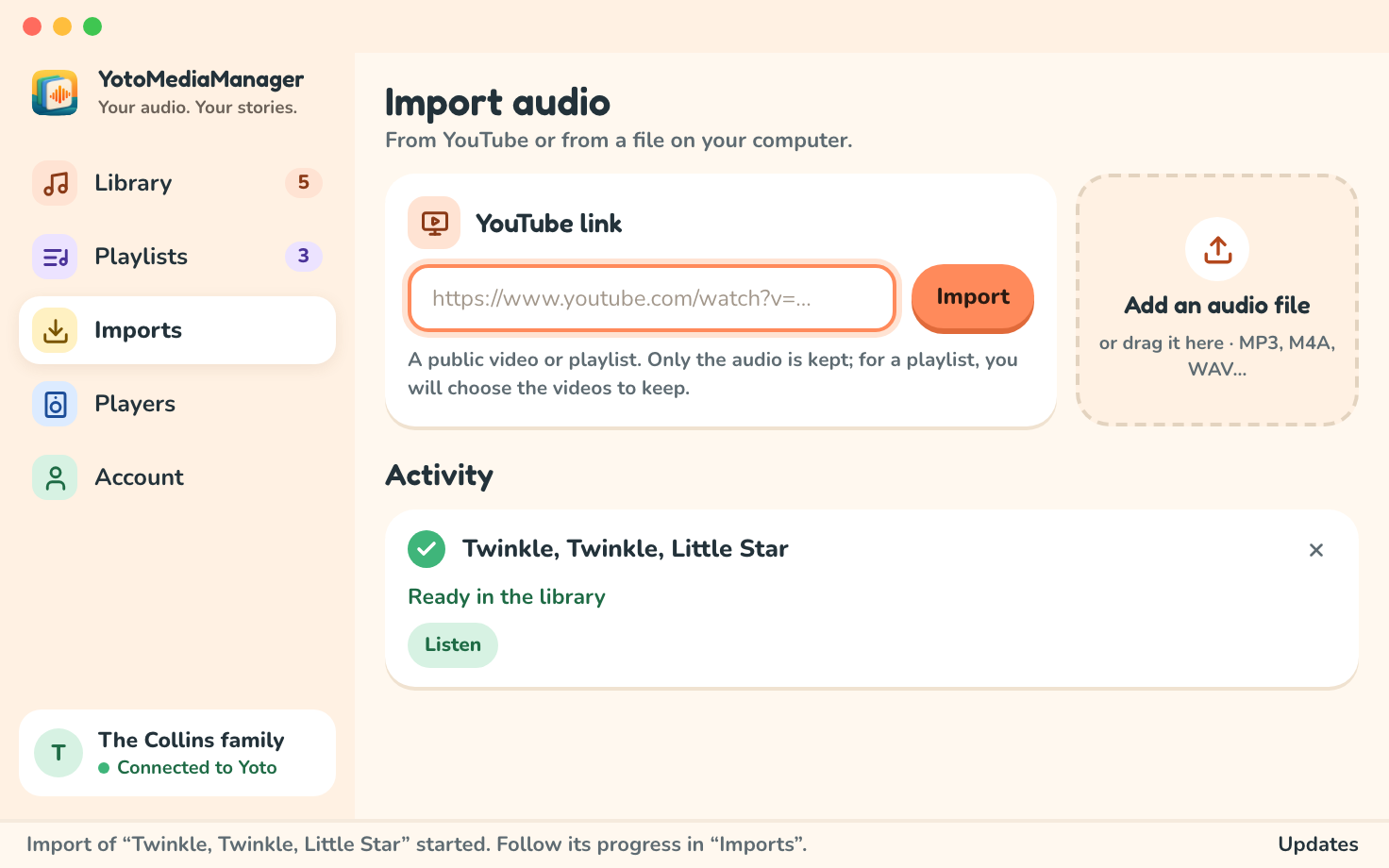
For a YouTube playlist, the app shows the available videos. Select the ones you want, then choose Importer la sélection. This selection is required even when the playlist contains just one video. The app limits this selection to 100 videos.
Downloading and extracting audio happen on your computer. Audio is sent to Yoto when you choose to add it to a playlist. Private videos, content requiring a login, and some restricted videos may be inaccessible.
Follow tasks
The Imports screen shows progress and errors. A completed import displays the media title and lets you open it in the library. The original address is available in Détails. Annuler stops a running task; Réessayer is offered when a failed task can be retried.
An error with one link does not remove other media from your library. Check the link, public access to the video, and your connection, then see troubleshooting.
Organize imported media
In Médiathèque, search for a title and open Trier to choose title (Titre), author (Auteur), duration (Durée), or recent imports (Récents). Use the checkboxes to select multiple media. The ⋯ menu next to Ajouter un fichier audio offers selection of all results, cache cleanup, and exporting or importing the whole library.
Local deletion is refused while a playlist still uses the media. Remove the relevant tracks first. The export guide explains how to keep a copy of your library.